Overleaf is where your coauthors write. Git is where you want your paper: real commits, branches for experiments, a mirror on GitHub, your own editor. Overleaf’s built-in Git integration is a premium feature. olcli, an open-source command-line tool for Overleaf, adds a git remote that works with a normal Overleaf session, including on the free plan.
This guide shows the setup, the daily workflow with coauthors, and the limits worth knowing.

What you get
git clone,git pullandgit pushagainst an Overleaf project, with the git you already use- Your coauthors keep working in the Overleaf web editor. Nothing changes for them
- No git token and no paid plan: olcli uses your normal Overleaf sign-in
- The same commands work for self-hosted Overleaf
I checked this workflow on a free overleaf.com account, including the case that matters most: a coauthor edits the paper on Overleaf while you work locally.
Setup
Install olcli with Homebrew or npm:
brew install aloth/tap/olcli
# or
npm install -g @aloth/olcli
Both install the olcli command and the git remote helper that makes overleaf:: URLs work.
Sign in once:
olcli auth --browserThis opens the Overleaf login page in a separate browser window. Sign in as usual, with SSO or two-factor if your account uses them. olcli keeps only the session cookie and never sees your password. It needs Node 22 or newer; on a server without a display, olcli auth --cookie asks for the cookie instead.
Find the project ID:
olcli listEach line starts with the 24-character ID, followed by the project name. The ID is also the last part of the project URL in your browser.
Clone
git clone overleaf::https://www.overleaf.com/project/<id> paper
cd paper
You now have a normal git repository with the current state of the project as its first commit.
The daily loop
git pull                         # bring in what your coauthors changed
vim sections/results.tex          # write with your own editor
git commit -am "Rewrite results"
git push                          # upload your commits to Overleaf
git pull downloads the project, and if anything changed on Overleaf since your last pull, it arrives as a new commit and is merged with your work like any other git merge. If nothing changed, no commit is created.
When a coauthor edited the paper
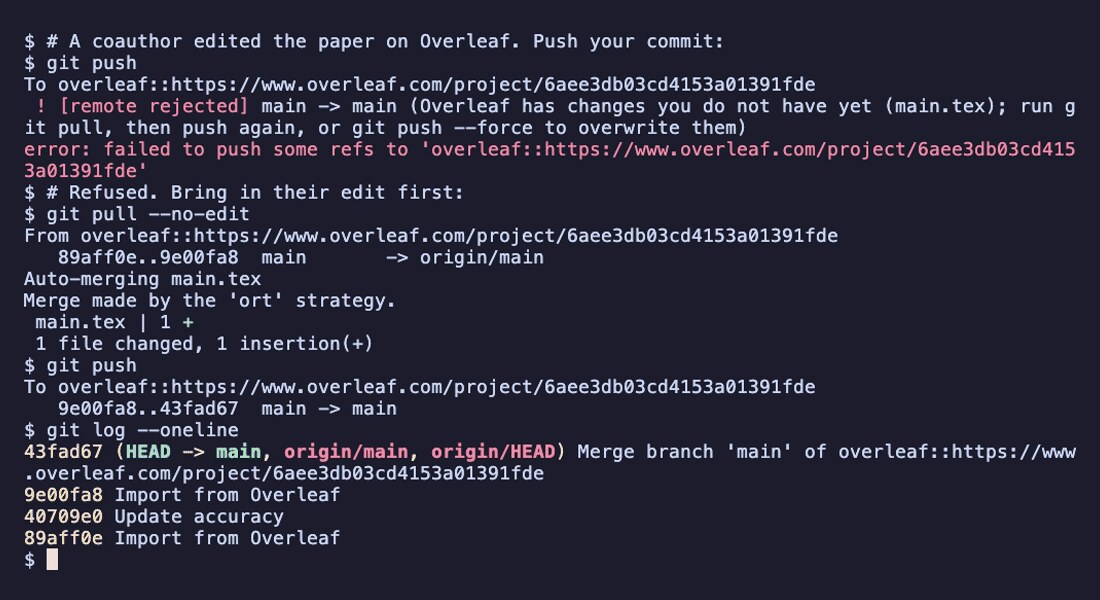
This is the part that decides whether a git workflow is safe with coauthors. If someone changed the project on Overleaf since your last pull, git push is refused:
! [remote rejected] main -> main (Overleaf has changes you do not have yet (main.tex);
  run git pull, then push again, or git push --force to overwrite them)
Run git pull, resolve a conflict if git reports one, commit, and push again. Your push then contains their edit and yours. The recording at the top of this post shows exactly that on a real project.
A push is also refused if you pulled but have not finished the merge yet, for example while a conflict is still open. git push --force overwrites Overleaf on purpose, for the rare case where that is what you want.
If you cloned with olcli 0.16.0 or earlier, run git pull once before your next push. Older versions did not bring in edits made on Overleaf after the clone, and olcli 0.16.1 added the checks described above.
Mirror to GitHub
Your clone is an ordinary git repository, so a second remote works as usual:
git remote add github git@github.com:you/paper.git
git push github main
Pull from Overleaf, push to both, and your paper has a backup and a history outside Overleaf.
Self-hosted Overleaf
Point olcli at your instance once and use your instance URL in the clone:
olcli config set-url https://latex.example.org
olcli auth --browser
git clone overleaf::https://latex.example.org/project/<id> paper
Limits worth knowing
- No Overleaf history in git. Overleaf does not expose its edit history, so everything your coauthors changed between two pulls arrives as one commit named “Import from Overleaf”.
- A push replaces whole files. Each changed file is uploaded the way a replacement upload in the web editor works. If a file has open review comments, resolve them before you push or check them afterwards.
- Every pull and push downloads the project once to compare it, so on a large project it takes as long as a download. Overleaf limits how often a project can be downloaded: many pulls in a few minutes can be answered with HTTP 429. Wait a minute and retry.
- One branch. The Overleaf side is
main. Use as many local branches as you like and merge before you push.
Try it
olcli is open source under the MIT license. Clone a project, make a commit and push it. Details are in the git remote documentation, and questions or bug reports are welcome on GitHub.

