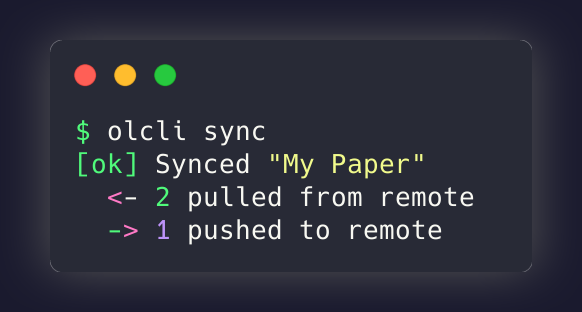
If you’re a LaTeX user who loves Overleaf’s collaboration features but prefers editing in your terminal, you’re going to love this workflow. After using olcli daily for several months, I’ve settled into a smooth routine that combines the best of both worlds: Overleaf’s cloud compilation and my local editing environment.
Let me walk you through exactly how I work with LaTeX projects every day.

Decisively Digital
Discover the power of artificial intelligence and digital transformation in the #1 best-selling business book Decisively Digital.
Buy on Amazon Learn MoreThe Setup (One-Time)
Before diving into the daily workflow, you need to authenticate olcli with your Overleaf account. This is a one-time setup:
1. Get your session cookie from Overleaf:
- Log into overleaf.com
- Open Developer Tools (F12 or Cmd+Option+I)
- Navigate to Application → Cookies
- Copy the value of
overleaf_session2
2. Store it with olcli:
olcli auth --cookie "your_session_cookie_value"That’s it! The cookie stays valid for weeks, and you’ll only need to refresh it when authentication fails.
3. See what you have:
olcli listThis shows all your Overleaf projects with their IDs and last-modified dates. Pick one to work on:
olcli pull "My Research Paper"
cd My_Research_Paper/
You’ll notice a .olcli.json file appears in the directory. This metadata file tracks the project ID and sync state—keep it around, but add it to .gitignore if you’re versioning locally.
My Daily Workflow
Here’s my actual morning-to-evening routine when working on papers:
Morning: Get Latest Changes
First thing I do is sync all active projects:
olcli syncThis pulls any changes my collaborators made overnight and pushes any local edits I forgot to push yesterday. The sync command is smart about conflicts—local changes take precedence if both sides modified the same file.
Writing Session: Edit Locally
Now the fun part. I open my editor of choice (VS Code with LaTeX Workshop extension, but Vim works just as well):
code .What I love about local editing:
- Multi-file search and replace across the entire project
- Real syntax highlighting and autocomplete from my editor
- File organization in my local filesystem
- Split-screen editing of multiple
.texfiles - Git integration (more on that in a future post)
Example editing session:
# Quick typo fixes
vim introduction.tex

# Major restructuring
code methods.tex results.tex discussion.tex
The web UI is fine for quick edits, but when I’m rewriting entire sections or refactoring across multiple files, nothing beats a proper text editor.
Midday: Push and Compile Check
After a good writing session, I push changes back to Overleaf:
olcli pushIf I want to see exactly what will be uploaded before committing:
olcli push --dry-runThen I compile remotely to make sure Overleaf’s LaTeX compiler is happy:
olcli pdf -o draft.pdfThis triggers compilation on Overleaf’s servers and downloads the PDF. I keep these daily builds in a separate folder:
mkdir -p builds/
olcli pdf -o "builds/paper-$(date +%Y%m%d).pdf"
This gives me a dated archive of PDFs to compare revisions.
Evening: Final Sync
Before closing my laptop:
olcli sync # One last sync to catch any collaborator changesReal-World Scenarios
Let me show you how I handle specific tasks with olcli:
Scenario 1: Conference Deadline Crunch
When a deadline is approaching, I work entirely locally for speed:
# Morning: get latest from co-authors
cd ~/Papers/WebConf2026/
olcli sync

# All-day writing session (no interruptions for web UI lag)
vim introduction.tex
vim related_work.tex
vim experiments.tex

# Afternoon: push and compile
olcli push
olcli pdf -o paper-draft-20260206.pdf

# Final deadline push
olcli sync  # Get last-minute co-author edits
olcli push --all  # Push everything
olcli pdf -o FINAL-submission.pdf
Scenario 2: Managing Bibliography
I prefer managing .bib files with JabRef or Zotero locally:
# Pull project
olcli pull "Research Paper"
cd Research_Paper/

# Edit bibliography with dedicated tool
jabref references.bib

# Push back and recompile to check citations
olcli push
olcli compile
olcli pdf
Much easier than editing bibliography in the web UI!
Scenario 3: Preparing arXiv Submission
arXiv requires specific files (.bbl, source files, etc.). Here’s my workflow:
# Make sure everything is synced
olcli sync

# Download compiled PDF
olcli pdf -o paper-final.pdf

# Get the .bbl file for arXiv
olcli output bbl -o paper.bbl

# Check compilation log for warnings
olcli output log

# Optional: see all available output files
olcli output --list

# Create submission archive
olcli zip -o arxiv-submission.zip
The output command is a lifesaver for arXiv submissions. No more manual copy-paste from the web UI!
Scenario 4: Working on Multiple Papers
When juggling several projects (the usual academic reality):
# See all projects
olcli list

# Pull multiple papers for offline work
for paper in "WWW Paper" "NeurIPS Submission" "Review Response"; do
  olcli pull "$paper"
done

# Later: push all changes at once
for dir in WWW_Paper/ NeurIPS_Submission/ Review_Response/; do
  cd "$dir"
  olcli push
  cd ..
done
I often do this before flights or long train rides—pull everything, work offline, batch-push later.
Pro Tips from Daily Use
Here are some tricks I’ve learned:
1. Shell Aliases Save Time
Add to your .bashrc or .zshrc:
alias op='olcli push'
alias os='olcli sync'
alias opdf='olcli pdf'
alias olist='olcli list'
Now syncing is just os instead of typing the full command.
2. Project-Specific Auth (Multi-Account Users)
If you work with multiple Overleaf accounts, create a .olauth file in each project directory:
echo "s%3AyourSessionCookieValue..." > .olautholcli will use this instead of the global config.
3. Check Before You Pull
Use olcli info to see what’s on the remote before pulling:
olcli info "My Paper"This shows the file list and project metadata without downloading anything.
4. Verbose Mode for Debugging
If sync behaves unexpectedly, add --verbose:
olcli sync --verboseYou’ll see exactly which files are being compared, skipped, or uploaded.
5. Working Offline
Travel workflow:
# Before flight: pull all active papers
olcli pull "Paper A"
olcli pull "Paper B"

# Work offline during flight
vim Paper_A/main.tex
vim Paper_B/introduction.tex

# After landing: batch push
cd Paper_A && olcli push && cd ..
cd Paper_B && olcli push && cd ..
I’ve written entire paper sections on planes this way.
6. Keep .olcli.json Out of Git
If you’re also versioning your LaTeX project in Git (highly recommended!), add this to .gitignore:
.olcli.jsonThis file is olcli-specific metadata and doesn’t need to be in your repository.
When to Use Web UI vs. CLI
olcli doesn’t replace Overleaf’s web interface—it complements it. Here’s when I use each:
Use Overleaf Web UI for:
- Initial project creation and setup
- Sharing projects with collaborators who don’t use CLI
- Quick typo fixes when away from my main machine
- Reviewing tracked changes and comments from collaborators
- Rich-text preview mode (sometimes useful for presentations)
Use olcli for:
- Extended writing/editing sessions
- Multi-file refactoring
- Working with version control (Git)
- Local backups and archiving
- Batch operations across multiple projects
- arXiv submission preparation
- Offline work
- Any terminal-based workflow automation
My Actual Daily Routine
Here’s what a typical research day looks like for me:
9:00 AM — First coffee, open terminal:
cd ~/Papers/
for paper in */; do cd "$paper" && olcli sync && cd ..; done
9:30 AM – 12:00 PM — Deep writing session in VS Code (LaTeX Workshop extension)
12:00 PM — Lunch break, quick compile check:
olcli push
olcli pdf -o daily-check.pdf
1:00 PM – 5:00 PM — More editing, occasional pushes
5:00 PM — End of day sync and archive:
olcli sync
olcli pdf -o "builds/paper-$(date +%Y%m%d-%H%M).pdf"
Evening — Collaborators in other time zones often push changes; I pull them the next morning
This workflow has saved me countless hours compared to working exclusively in the browser. The speed of local editing, combined with Overleaf’s collaborative features and robust LaTeX compilation, is hard to beat.
Getting Started
Ready to try this workflow yourself?
Install olcli:
# macOS/Linux with Homebrew
brew tap aloth/tap && brew install olcli

# Or via npm (all platforms)
npm install -g @aloth/olcli
First steps:
- Authenticate with your Overleaf session cookie
- List your projects:
olcli list - Pull one to try:
olcli pull "Project Name" - Edit locally, then push:
olcli push - Compile and download:
olcli pdf
That’s it! Once you get comfortable with the basic pull-edit-push cycle, you’ll wonder how you ever worked without it.
What’s your LaTeX workflow? Do you use other tools alongside Overleaf? I’d love to hear about different approaches—drop a comment or reach out on Twitter/X.
For more details and advanced usage, check out the olcli documentation on GitHub.

